AmazingHiring Integration with Greenhouse
How to connect the integration
To set up the integration, go to Account → Integrations on the AmazingHiring website, find the Greenhouse integration in the list
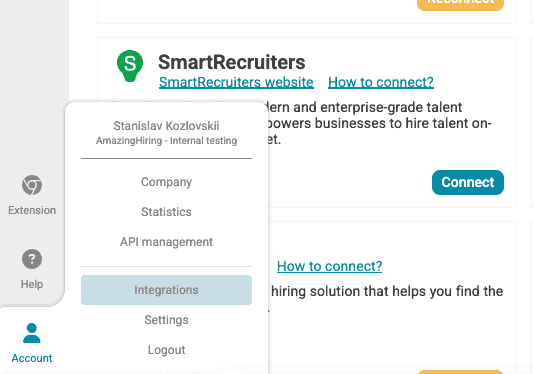
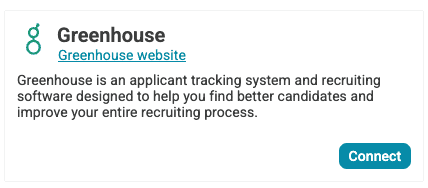
and click the Connect button.
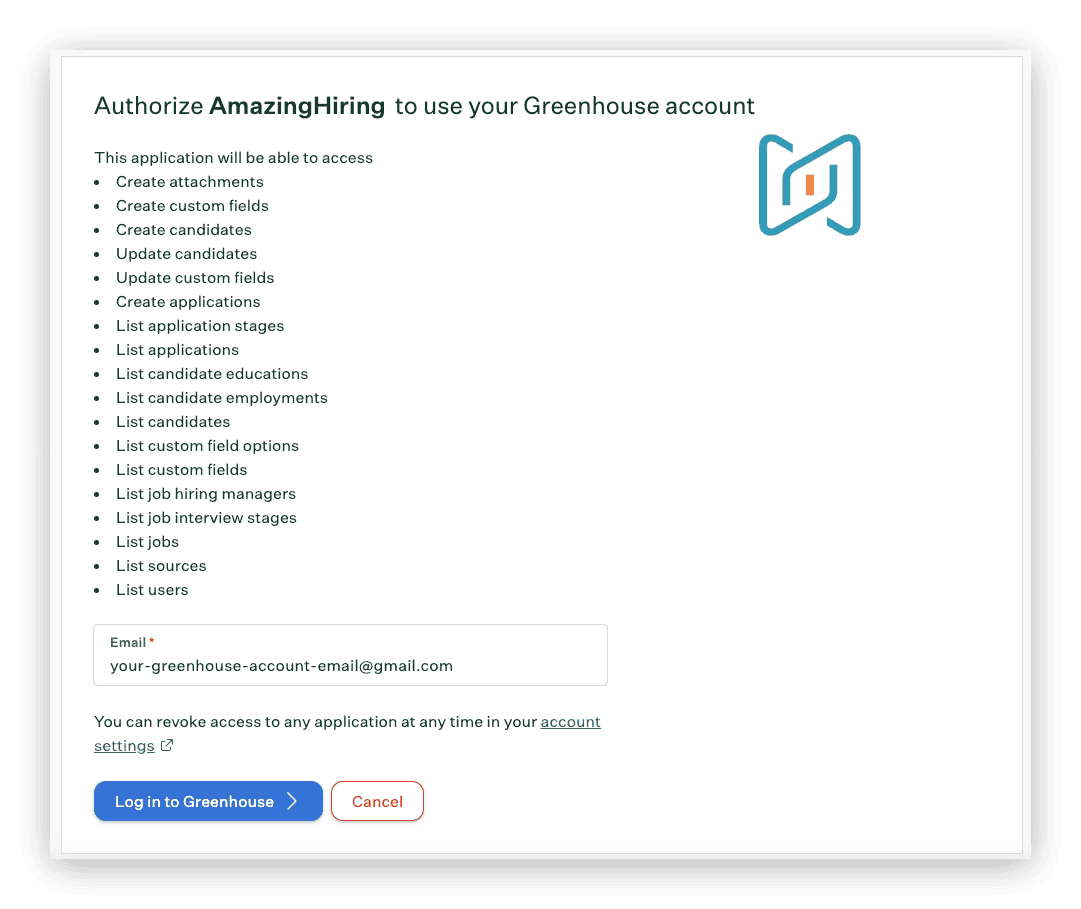
The integration connection window will open. Enter the email for your Greenhouse account and click Log in to Greenhouse.
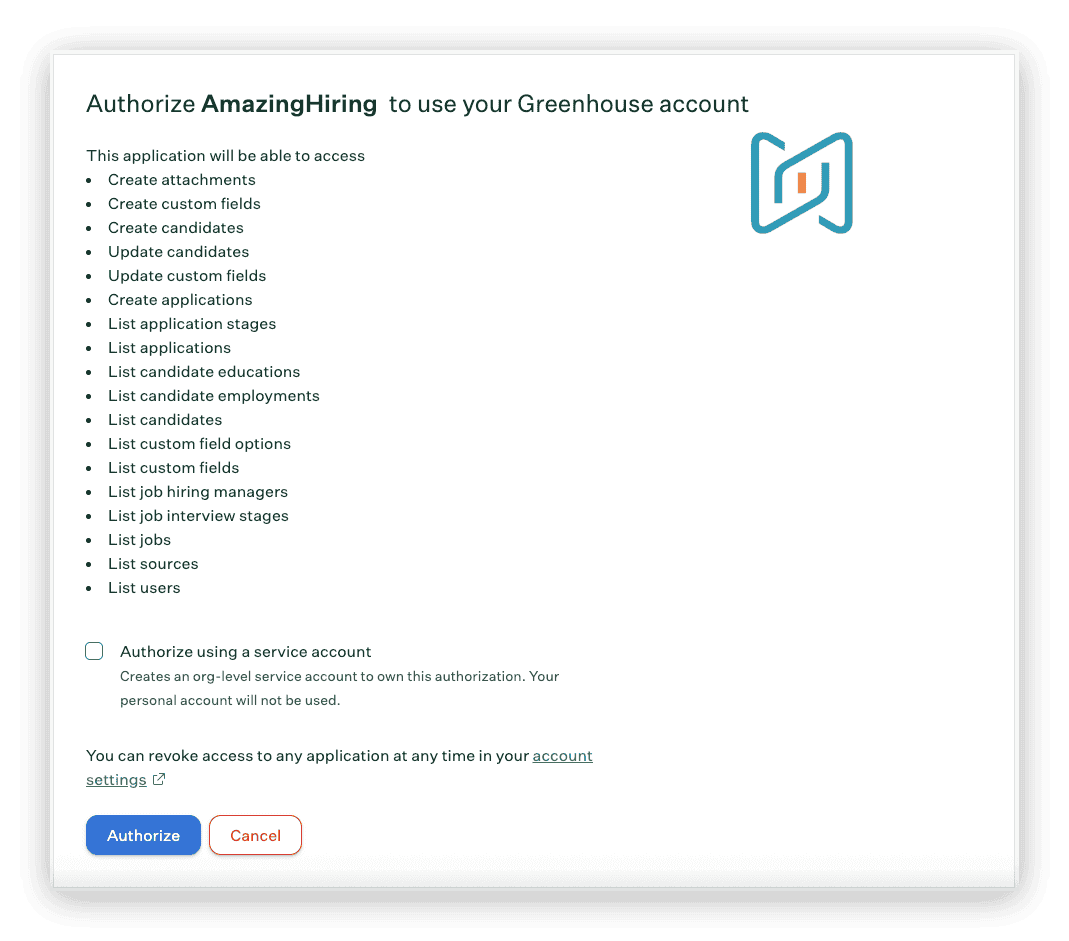
Then click Authorize.
Done. The integration is connected.
IMPORTANT: After connecting the integration, please allow some time for the synchronization to complete (approximately 1 to 24 hours, depending on the number of candidates in your ATS).
Permissions
If you encounter the error "User is not authorized to perform this action" during connection, it means your account doesn't have sufficient permissions in Greenhouse.
To use the integration, you must have one of the following roles in Greenhouse:
-
Site Admin (without additional settings or flags)
-
Job Admin — but you'll need to make sure the Manage custom fields and Manage unattached prospects flags are enabled for your account, as shown in the screenshot below. To enable them, ask your administrator (or anyone with Site Admin role) to go to https://app.greenhouse.io/account/users and set these flags for you.
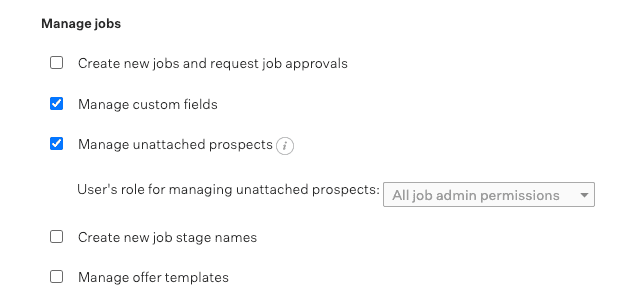
Then try to connect the integration again.
How to use the integration
After enabling the integration, the Greenhouse Recruiting section will appear in the full candidate profile. In this section, you can add the profile to one of your Greenhouse Recruiting jobs or add to your base without indicating any vacancy. This function is also available in the AmazingHiring extension.
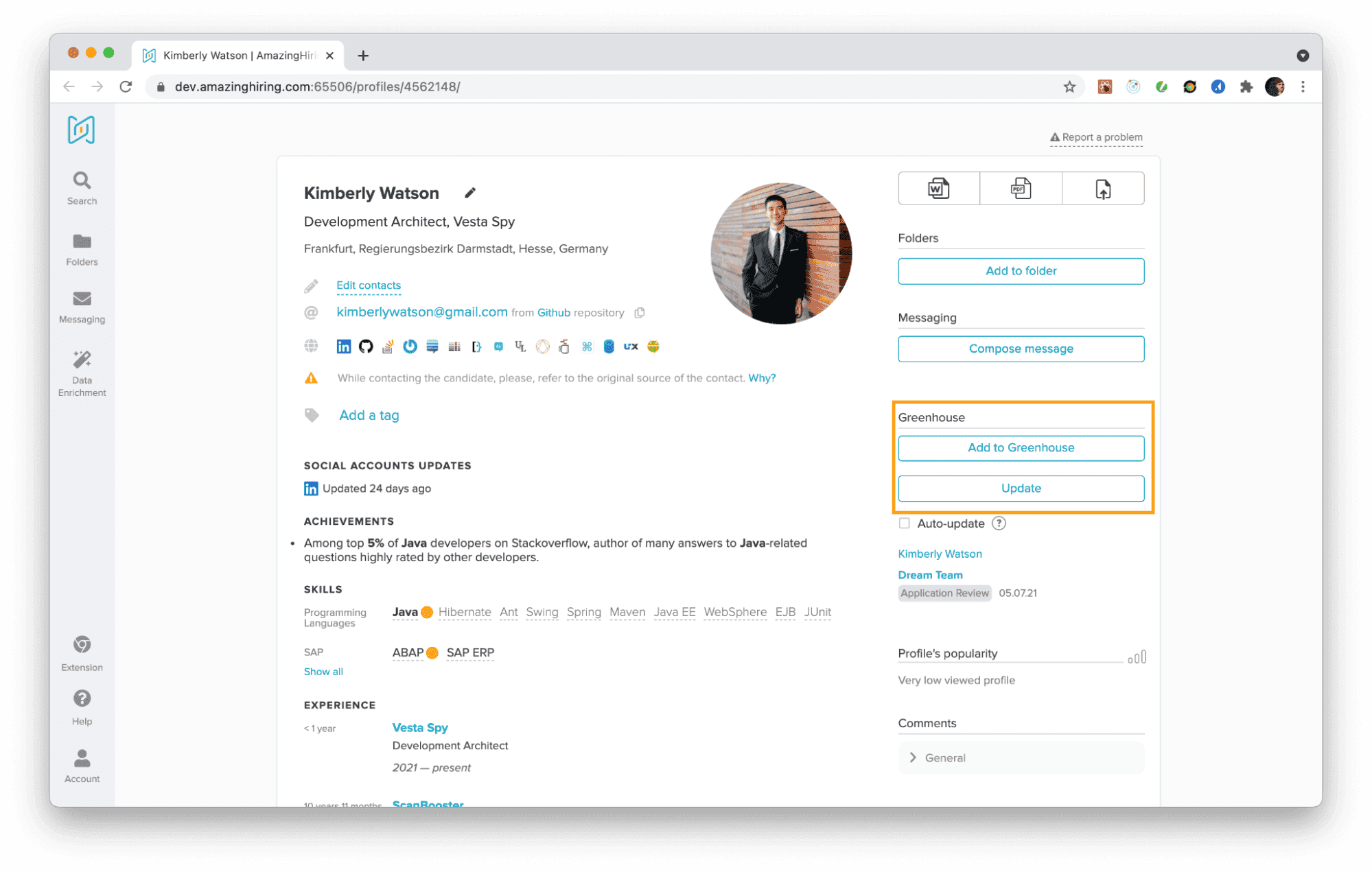
After you have added the profile in the search engine and/or extension it will be displayed in the candidate's section.
The profile will include information from the AmazingHiring profile, such as:
- full name
- current company and position
- location
- phone numbers
- email addresses
- social media addresses
- website addresses
- resume as file
- tags
It also includes some additional details:
- skills
- comments
- folder statuses
- mailing statuses
- profile link
You can also export candidates from the folder from AmazingHiring to jobs inside Greenhouse Recruiting. Go to the folder > Select a number of candidates you want to export. You can check "__ profiles" to export all candidates from the folder or check individual candidates from the list.
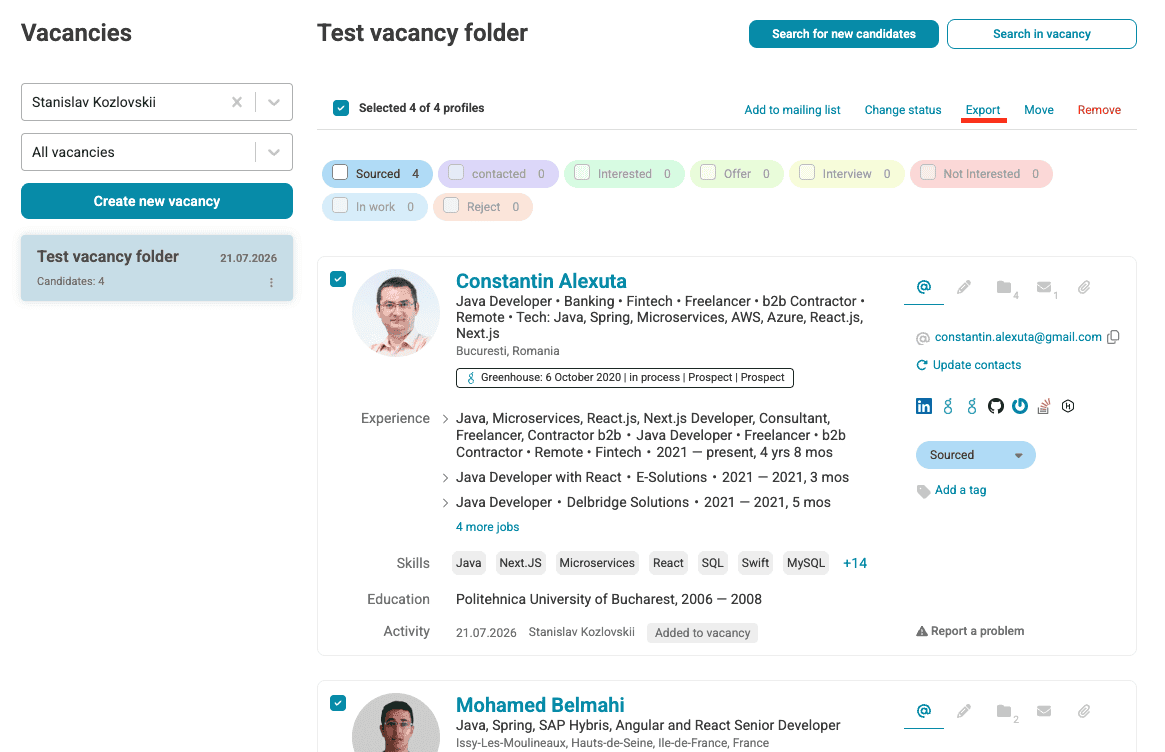
Click Export. You'll see a page with export settings. Click Greenhouse to the right of CSV.
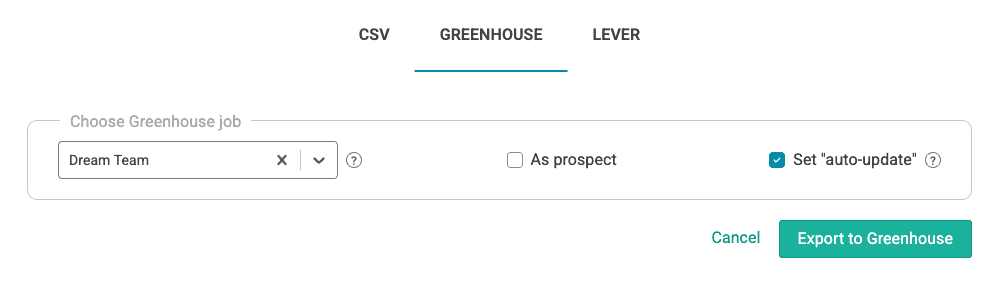
You'll see information about the number of contact access credits you'll spend. If you haven't opened the contact details of some candidates that are in the folder you're exporting, they'll be opened automatically.
Choose a job you want these candidates to be associated with in Greenhouse Recruiting or select the As a prospect.
Select whether you want to update candidates' statuses automatically in Greenhouse Recruiting when they are updated in AmazingHiring.
Click Export to Greenhouse.
In the candidate list on AmazingHiring, a badge indicates that a candidate has already been exported to Greenhouse. The badge is clickable, and clicking it takes you to the candidate in Greenhouse.
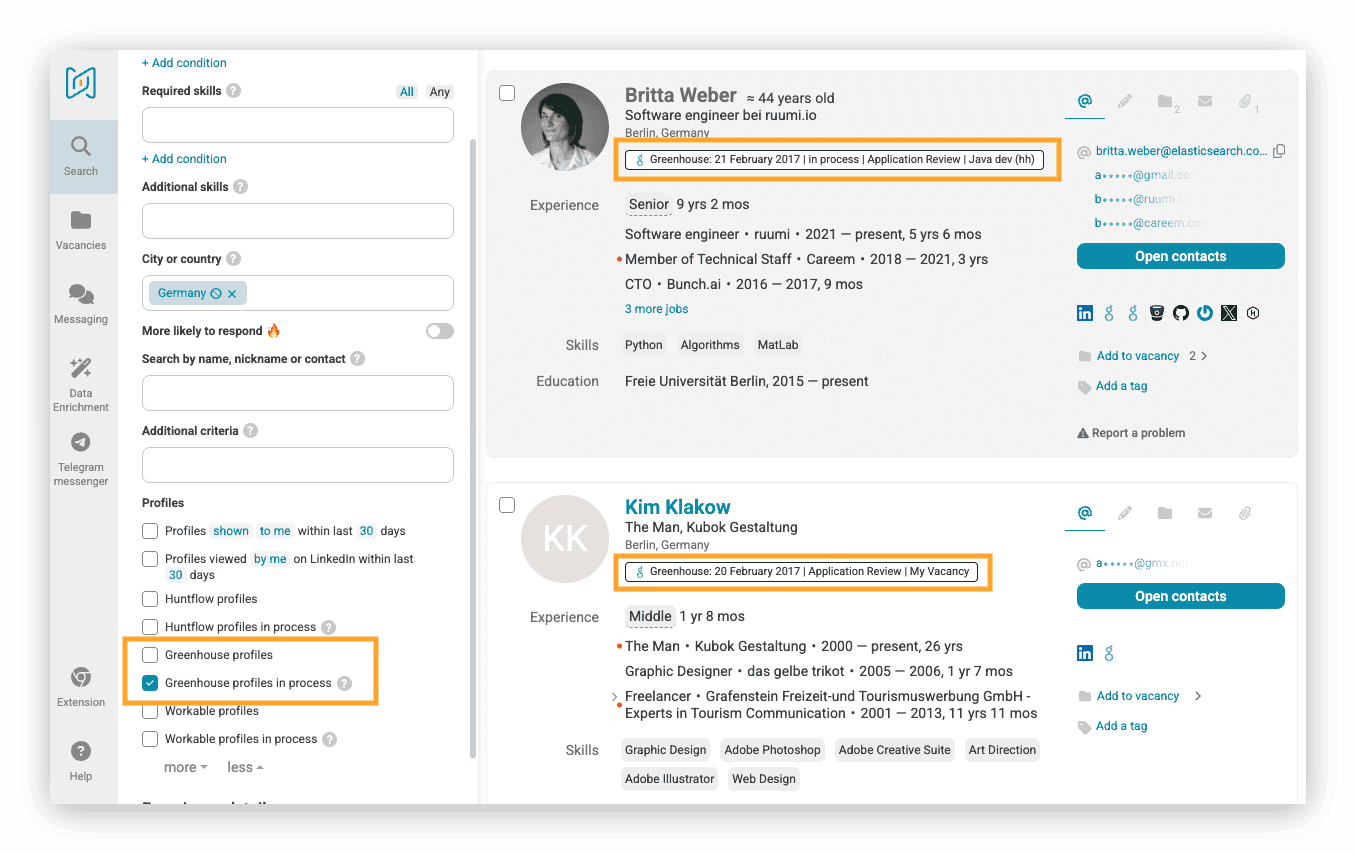
Using filters, you can select candidates who:
- have already been exported to Greenhouse
- have already been exported to Greenhouse and are being considered for one or more job openings
- have not yet been exported to Greenhouse (to do this, switch the filter to exclusion mode, as shown in the screenshot below)

Additional resources
For additional information or troubleshooting not covered here, reach out to [email protected].