AmazingHiring Integration via Merge
About Merge
Merge is a unified integration platform that connects AmazingHiring with your ATS through a single, secure connection. Instead of building and maintaining a separate integration for each ATS, Merge provides one common interface that supports a wide range of systems.
With the Merge integration enabled, you can synchronize candidate data between AmazingHiring and your ATS: see which candidates have already been exported, filter candidates by their export status, and add profiles or export folders of candidates directly to jobs in your ATS.
How to connect the integration
To set up the integration, go to Account → Integrations on the AmazingHiring website and find the Merge integration in the list.
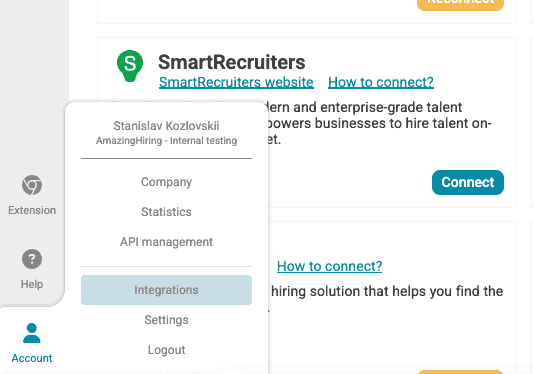
Click the Connect button.
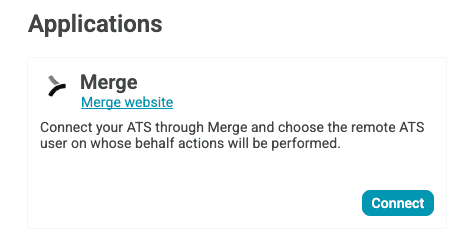
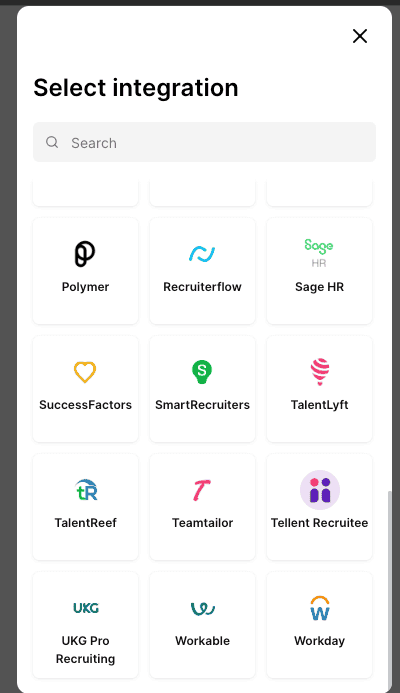
A window will open where you can select the ATS you want to set up the integration with. Choose your ATS from the list and follow the on-screen instructions.
We'll show you an example using Workable.
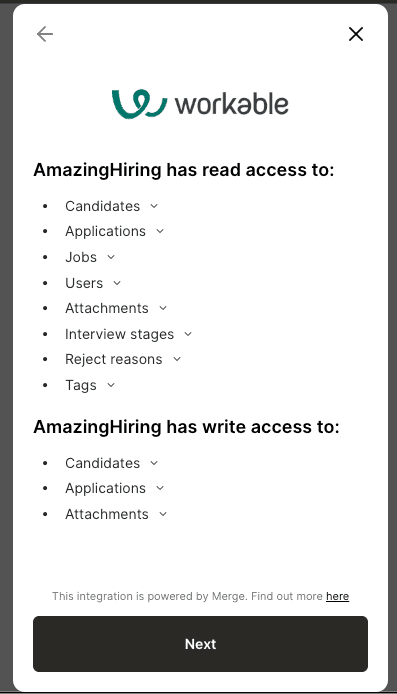
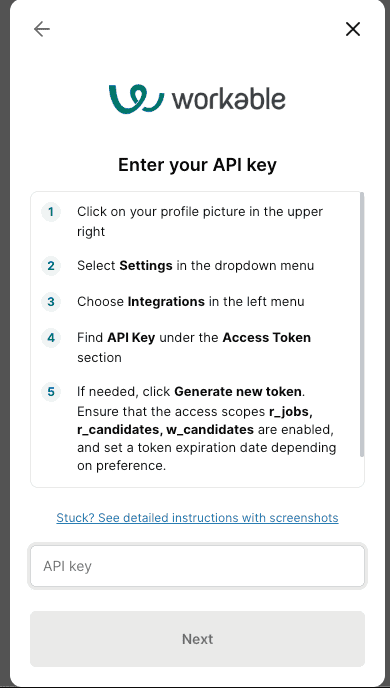
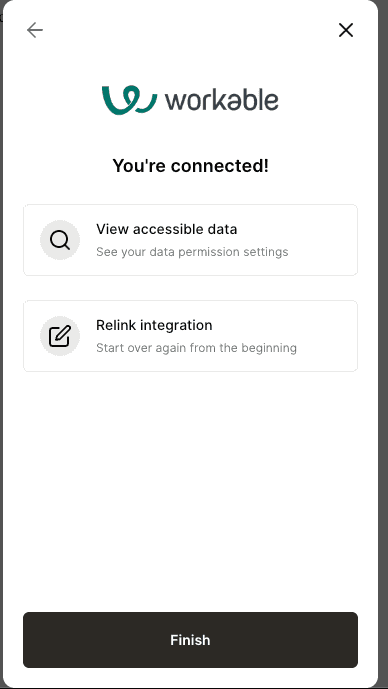
Done. The integration is connected.
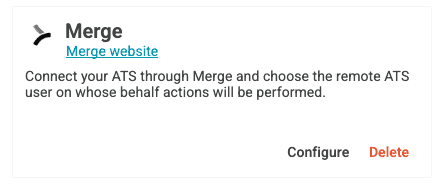
IMPORTANT: After connecting the integration, please allow some time for the synchronization to complete (approximately 1 to 24 hours, depending on the number of candidates in your ATS).
ATS user selection
During synchronization, each user of your company in AmazingHiring is matched with the corresponding user in your ATS. If the email matches, the user will be assigned automatically; otherwise, you'll need to select them manually.
To do this, click the Configure button.
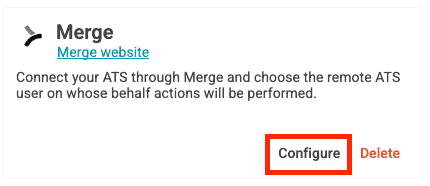
Select the corresponding user manually.
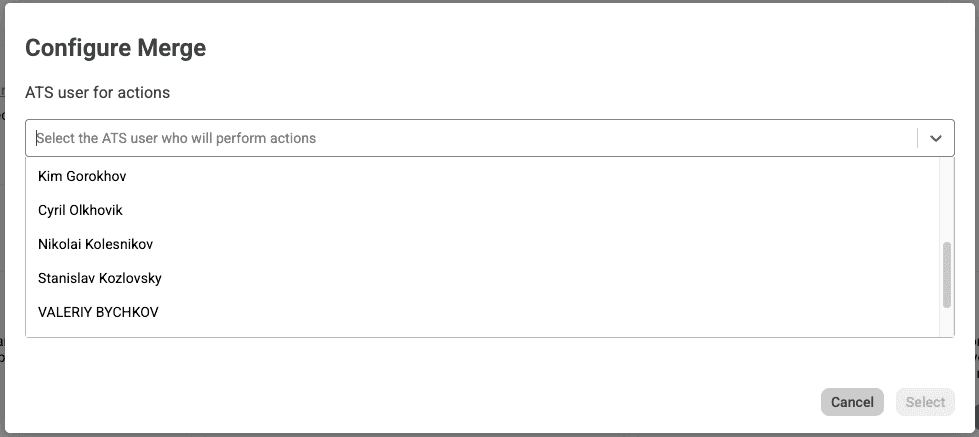
Then click Select.
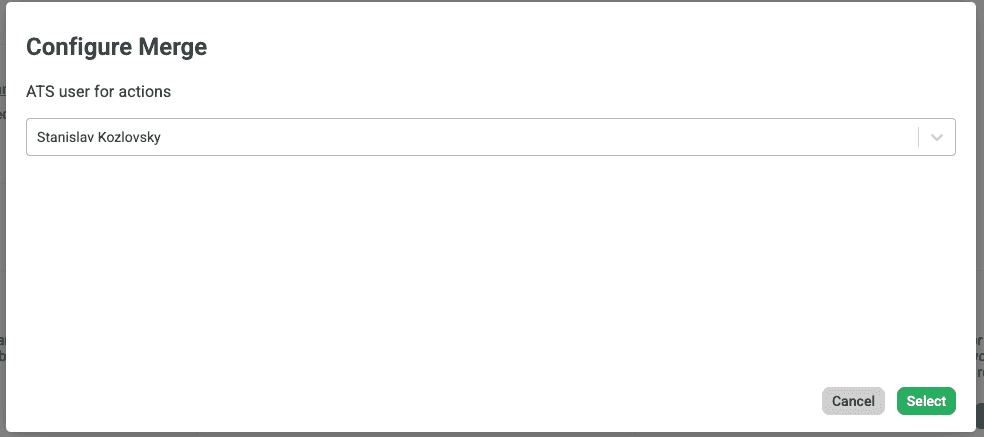
The user is now selected.
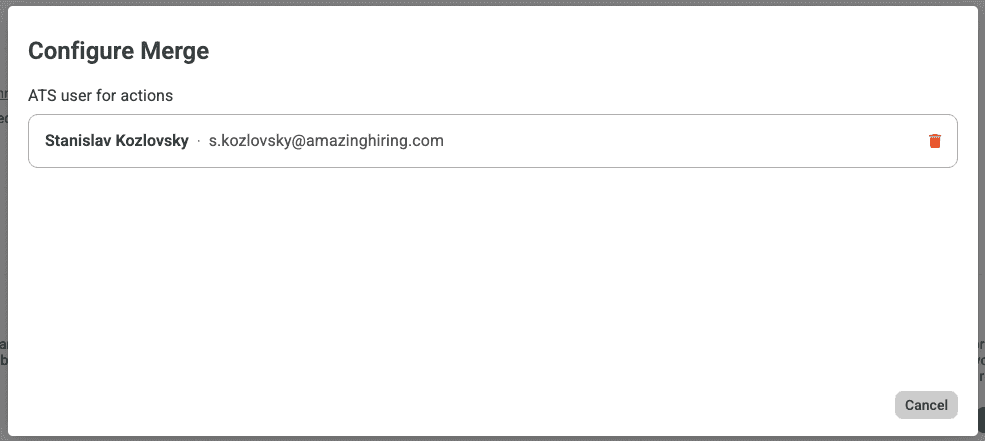
Close the pop-up.
How to use the integration
Import
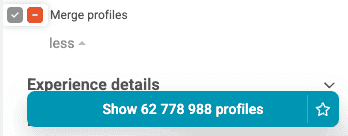
After enabling the integration, in the candidate list on AmazingHiring you can see badges that indicate that a candidate has already been exported to your ATS (via Merge).
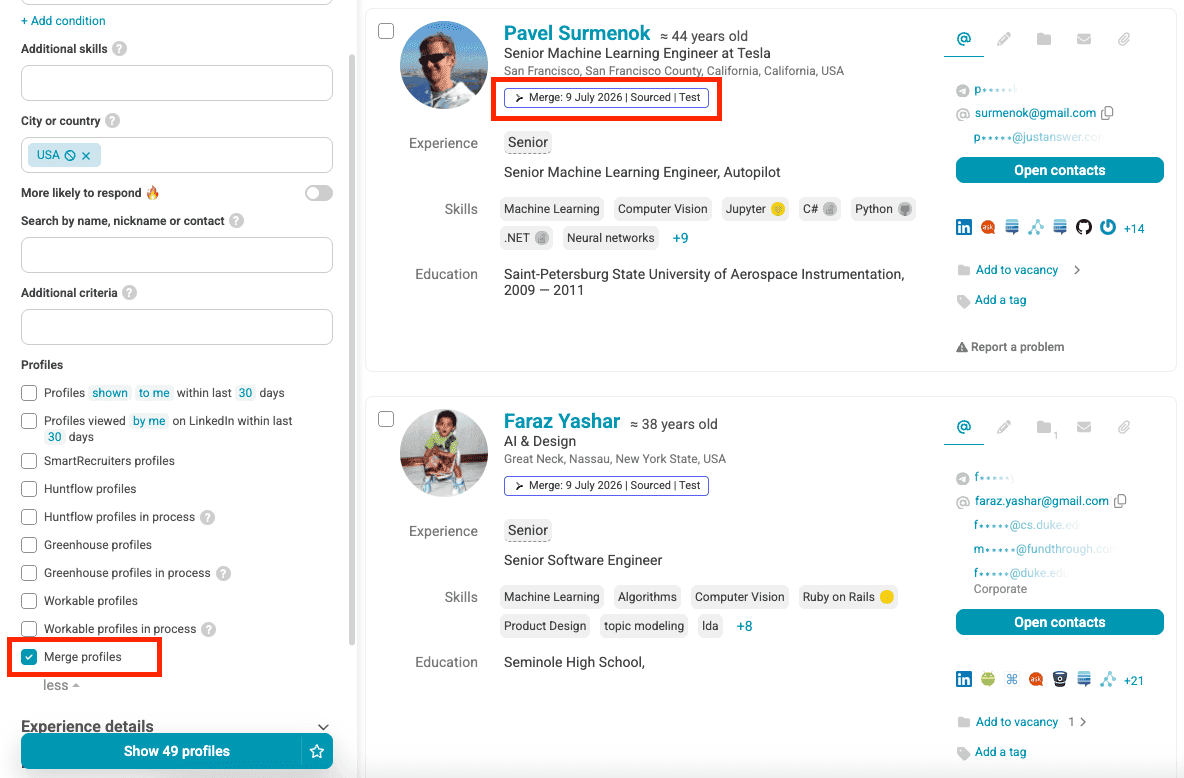
Using filters, you can select candidates who:
- have already been exported to your ATS (via Merge) by you
- have already been exported to your ATS (via Merge) by anyone in your company
- have not yet been exported to your ATS (via Merge)
Export
IMPORTANT: To use this functionality, you need to configure the user (see the "ATS user selection" section of this guide).
The Merge section will appear in the full candidate profile.
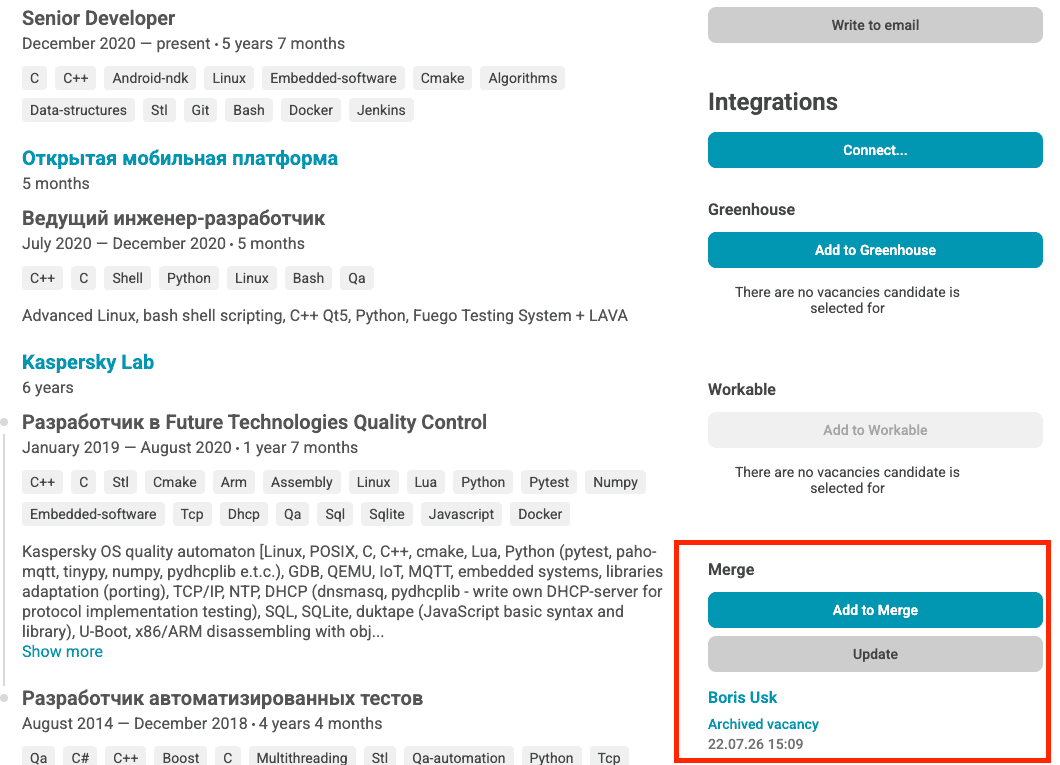
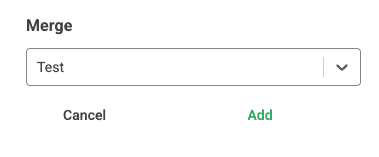
In this section, you can add the profile to one of your ATS jobs, or add it to your database without specifying a vacancy, via Merge.
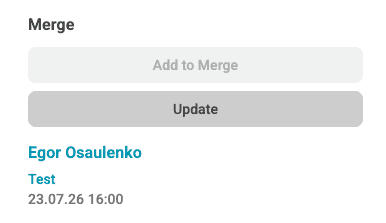
After you add the profile in the search engine, it will be displayed in the candidate's section.
You can also export candidates from a folder in AmazingHiring to jobs inside your ATS. Go to the folder and select the number of candidates you want to export. You can check "N profiles" to export all candidates from the folder, or check individual candidates from the list.
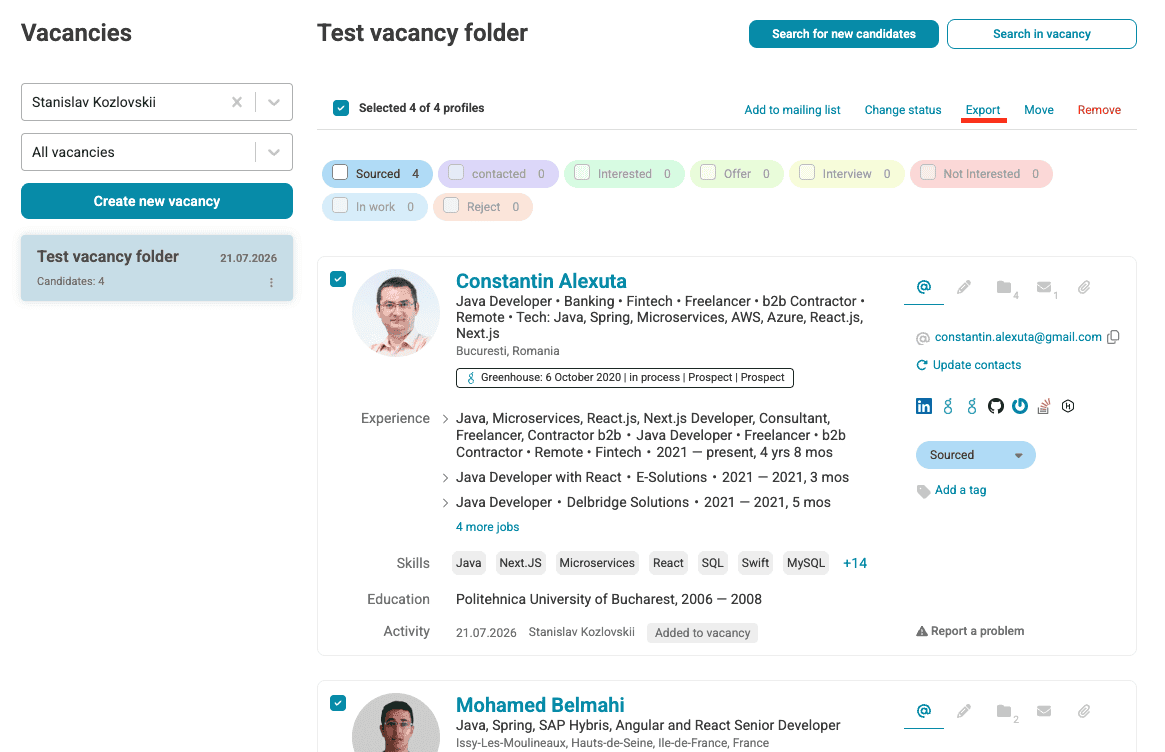
Click Export. You'll see a page with export settings. Click Merge to the right of CSV.
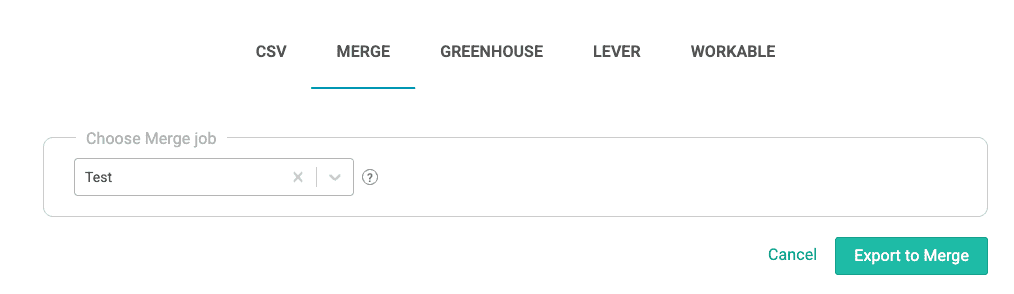
You'll see information about the number of contact access credits you'll spend. If you haven't opened the contact details of some candidates in the folder you're exporting, they'll be opened automatically.
Choose a job you want these candidates to be associated with in your ATS, then click Export to Merge.
Additional resources
For additional information or troubleshooting not covered here, reach out to [email protected].